How to Claim and Edit Your Knowledge Panel
The verification steps, what you can change, how to write an edit request that gets accepted, and the parts of your panel Google decides on its own.
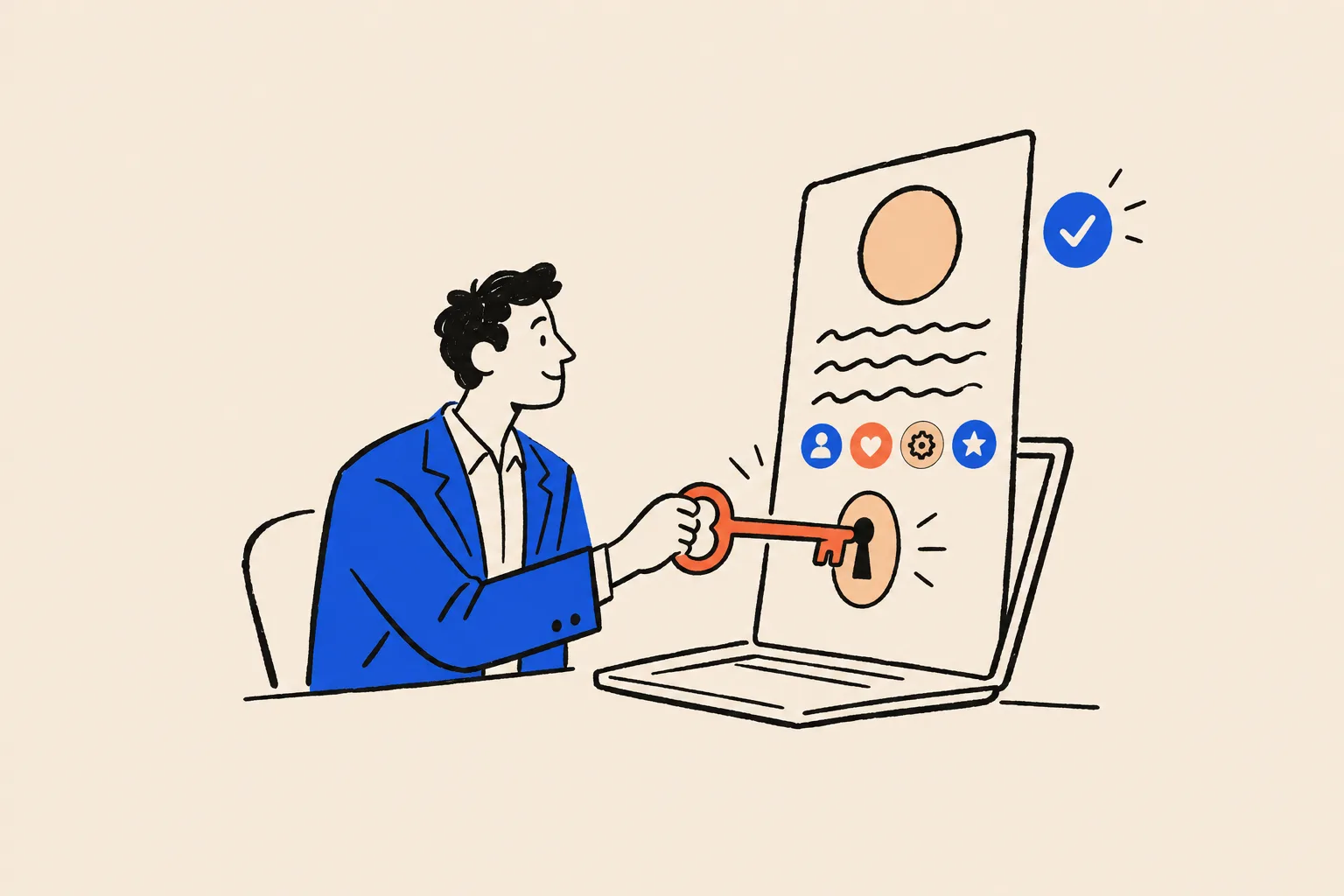
Claiming your knowledge panel can take minutes when everything lines up. Getting the panel to say what you want takes longer, and some parts of it you’ll never control.
This guide is the practical companion to What Is a Google Knowledge Panel, which explains why panels exist and how Google decides who gets one. Here we assume you already have a panel, or expect one soon, and want to take charge of it. You’ll find the exact claim steps, what to do when the claim button is missing, how verification through your linked accounts works, how to add an assistant or agency safely, and how to write edit requests that Google accepts.
Everything Google-specific below was checked against Google’s own Knowledge Panel Help pages in October 2026. Where we rely on practitioner experience instead, we say so.
Before you start: what you’ll need
Google lists two prerequisites. You need a Google Account, and you need to be able to find the knowledge panel for yourself, or for the entity you represent, in Google Search1. Three more things are worth checking first.
A panel that is genuinely yours. Search your name in a private window on desktop and mobile. Check the photo, the subtitle and the website link. If the panel belongs to a namesake, or blends you with one, claiming it isn’t the answer. You’ll want the Feedback route described later.
The right kind of panel. If you run a practice or office that serves clients at an address or in a service area, the box you see might be a Google Business Profile, not a knowledge panel. Google treats them as separate products, and Business Profiles are managed elsewhere1. Our guide to knowledge panels versus Business Profiles explains how to tell them apart.
Access to an official profile Google links to you. Verification depends on signing in to one of a short list of sites or profiles. Before you click anything, work out which of your accounts you can actually log in to, and whether it’s on your personal Google Account or a shared one. Being unable to log in to the right account is an easy way to stall a claim halfway.
How to claim your panel, step by step
When the claim option is there, Google’s process runs like this1.
Sign in to your Google Account
Use the account you want to own the panel long term.
Search for yourself and find your panel
Search the name the panel uses. Add your profession if a namesake’s panel shows first.
Click “Claim this knowledge panel”
It sits at the bottom of the panel, and sometimes in the “About” section. On mobile, open the panel’s menu and choose the same option.
Review what Google shows you
Google displays the panel details before asking you to verify. Check it’s the right entity.
Sign in to an official profile
Google lists the sites or profiles it links to you: YouTube, Search Console, X (Twitter) or Facebook. Pick one you can log in to.
Answer any extra questions
If Google can’t link any of those sites or profiles to you, it asks for more information to verify your identity.
Watch for the confirmation
Once verified, a “Suggest edits” option appears on your panel when you’re signed in with that account.
Google’s 2018 announcement made verification available to any person with a panel, alongside organisations, sports teams, events and media properties2. There’s no fame test at this stage. The only test is whether you can prove you are the person, or an official representative of the organisation, the panel describes.
When “Claim this knowledge panel” doesn’t appear
If the button isn’t there, one of four situations usually explains it.
There is no panel, or it’s a different product
You can’t claim what doesn’t exist. If searching your name shows only a list of links, the work is getting Google to recognise you first, which the flagship guide covers. A quick way to see whether Google holds an entity for your name is our free Knowledge Panel Checker. And if the box comes with directions, opening hours and reviews, it’s a Business Profile, managed through Google Business Profile rather than claimed here1.
The panel isn’t claimable yet
Google says plainly that not every knowledge panel can be claimed yet, and suggests checking back periodically for the button1. It doesn’t say why some panels lack the option. While you wait, anyone can send feedback through the “Feedback” link under a panel3, so you can still flag errors. Google says it can prioritise feedback from verified people about their own panel, so unverified suggestions may wait longer3.
Someone has already claimed it
The button can still show after a panel has been claimed. Clicking it then gives the message “Someone is already managing the account”1. Before assuming the worst, ask your organisation, your publicist, a former agency or anyone who might have claimed it on your behalf.
If you still can’t find the owner, start Account Recovery with Google’s Knowledge Panel Support team. You agree to let Google share your email address with the current owners or managers so they can approve adding you. Google waits 3 business days for a reply. If they approve, you’re added. If they don’t respond, the panel becomes claimable again1.
The panel mixes you up with someone else
If the panel shows your photo with a namesake’s birth date, or the wrong websites, Google’s help page lists this as an issue to report through its contact options rather than something to fix by claiming1.
Verifying through your linked accounts
Verification is Google checking that you control a profile it already associates with the panel. Each option has its own quirks.
| Option | What it proves | Check this first |
|---|---|---|
| YouTube | You control the official channel | Each channel has only one owner, and only that owner can transfer it. Make sure it isn’t your producer |
| Search Console | You own the official website | Add the site to Search Console and become a verified owner. A Domain property needs a DNS record; a URL-prefix property also accepts an HTML file, HTML tag, Analytics or Tag Manager |
| X (Twitter) | You control the official X profile | It must be the profile Google already links to you |
| You control the official Facebook presence | Same rule. A page an agency set up may sit under someone else’s login |
Source: Google Knowledge Panel Help and Search Console Help145
We recommend Search Console as the first route to try, because your website is the profile you control most completely. If the panel already links to your site, verifying that site in Search Console ties you to the panel without relying on a social network’s login. Google’s guidance for official websites is to add the site to Search Console and then add a site owner1. Any verified owner can then add delegated owners, who get the same permissions5.
Two smaller points are worth knowing. When you verify an X or Facebook presence, Google stores that association automatically, and you can remove it later through Webmaster Central1. And if Google can’t link any of these profiles to you, it will ask for more information. The current help page doesn’t describe what that involves, so be wary of older guides that promise a particular selfie or ID process.
Owners, managers and contributors
Once verified, you can bring other people in. Google uses three roles1.
| Role | Can suggest changes | Can add or remove users | Notes |
|---|---|---|---|
| Owner | Yes | Yes | The primary user. Only the owner can transfer ownership |
| Manager | Yes | Yes | Google says you must be a manager to remove users or change their permissions |
| Contributor | Yes | No | Suits an assistant or agency doing routine updates |
Source: Google Knowledge Panel Help1
To add someone, open Google’s contributions management page (google.com/search/contributions/manage), choose “Add people to this account”, pick the right account if you manage several, enter the person’s Google email address, decide whether they should be a manager and send the invitation1.
A few habits save trouble later:
- Keep ownership yourself. Make an agency a contributor, or a manager at most. If the relationship ends, you remove them in a minute.
- Add a trusted backup. A business partner or long-standing assistant as manager means you aren’t locked out if you lose access to your own account.
- Review the list once a year. People leave firms, and old access tends to linger.
- Transfer properly. If ownership really needs to move, for example when a founder hands a company panel to a successor, the owner uses “Transfer ownership” from the user’s menu1.
Suggesting edits that get accepted
Verified feedback goes through a specific flow. Sign in with the verified account, keep Web & App Activity turned on, search your name, click “Suggest edits” at the top of the panel, then click “Edit” next to the item you want to change3. Web & App Activity is controlled from your Google My Activity settings6.
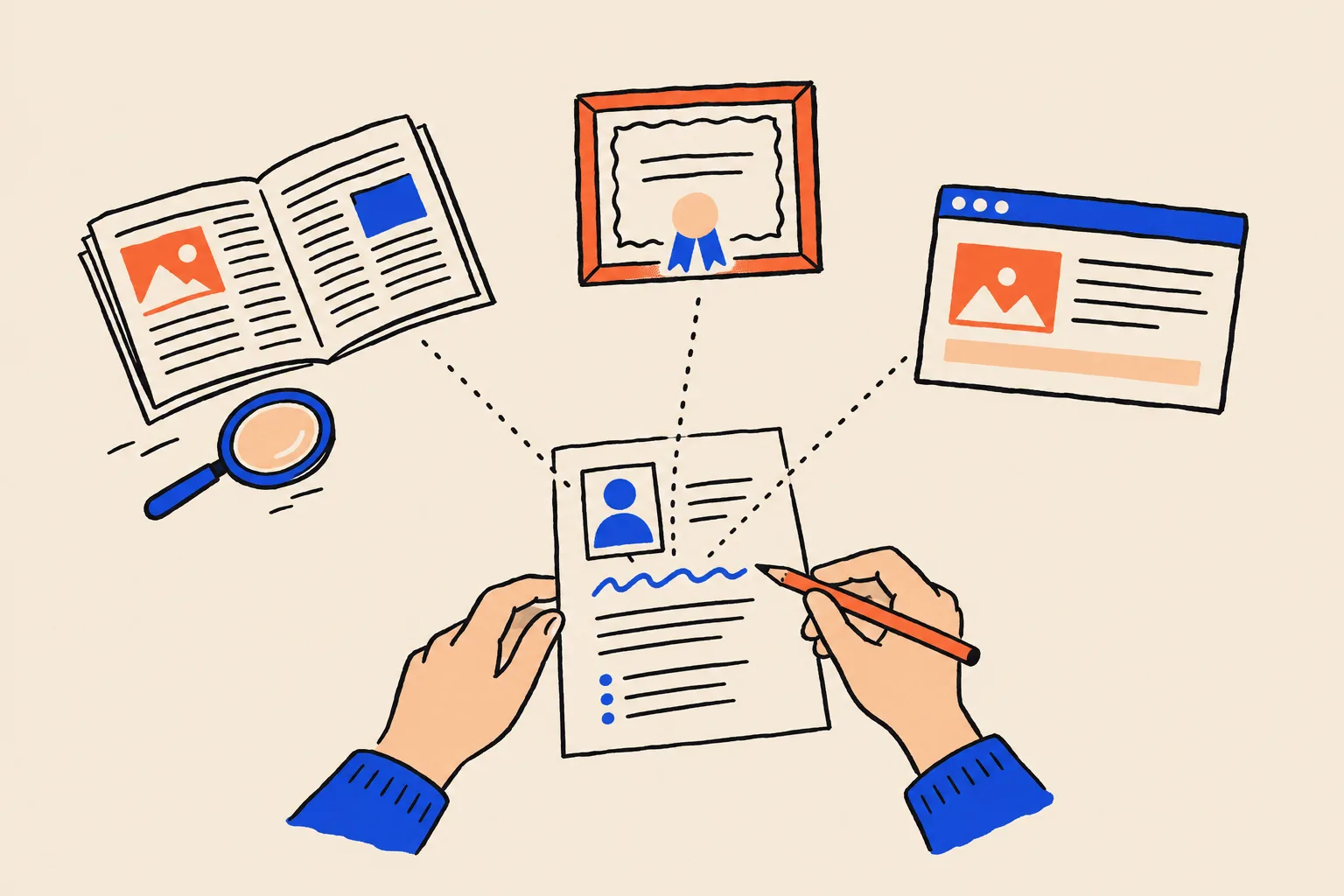
Google asks you to submit each item separately, describe what’s wrong, say what should be removed if anything, and include publicly accessible URLs that support your suggestion3. Google then compares your feedback with other public information on the web. That comparison is the whole game.
How to write a good edit request
Treat each request like a short note to a busy fact-checker who has never heard of you. Jason Barnard of Kalicube, an agency that sells panel management, gives the same advice from practice: describe the change, justify it and supply documentation from authoritative sources, because in his account a Google employee judges each request against Google’s policies7.
Item: Occupation

What's wrong: The panel lists me as "Managing Director, Harbour Analytics".
I left Harbour Analytics in March 2024.

Correct version: Founder and principal consultant, Ellis Advisory (since 2024).

Evidence (public pages):
1. https://www.example.com/about  (my official website, About page)
2. https://news.example.org/2024/ellis-advisory-launch  (independent news report)
3. https://www.example-association.org/members/jordan-ellis  (professional body listing)
What makes that template work:
- One item per request. Google asks for this, and a single clear change is easier to approve than a list.
- The wrong version and the right version, side by side. The reviewer shouldn’t have to work out what you mean.
- Independent evidence first. A news report, a professional register or an event page carries more weight than your own website, because it corroborates you rather than repeating you.
- Public, stable URLs. Nothing behind a login or a paywall, no PDFs that might move, no screenshots. Google says the URLs must be publicly accessible3.
- Evidence that already says the new thing. Update your About page, LinkedIn and speaker bios before you submit. If your own pages still show the old title, you’re asking Google to ignore your sources.
Requests that tend to fail
- “This is wrong, please fix” with no detail
- Several changes bundled into one message
- Evidence only from your own website
- Links that need a login or have moved
- Asking for a custom subtitle or description
- Submitting while other profiles still show the old fact
Requests that tend to succeed
- One item, clearly named
- The current and correct versions spelled out
- Two or three independent public sources
- Your own site and profiles already updated
- Plain, factual wording
- Signed in with the verified account
Personal details you can ask Google to leave out
Some edits are simpler. You can ask Google to omit personal details such as your date of birth, relationships and children, marital status, and subtitles that describe you by a family or romantic relationship. Click “Edit” next to the item, say that you want to opt out of showing it, and send3. For many professionals, removing a date of birth is the first edit worth making.
Featured image rules
The photo at the top of a panel is the edit most people want, and it has the tightest rules3:
- You can replace an image, not add one. Google can’t add a featured image on request. If your panel has no image, there’s nothing to swap.
- It must represent you and can’t be an ad. A clear, current headshot works. A book cover with a promotional banner does not.
- Give a direct image URL, not the page the image sits on. It must be publicly accessible and end in a format such as .jpg or .png. Right-click the image and choose “Copy image address” to get it.
- Related images are separate. You can’t remove or reorder the other images shown alongside the featured one.
We suggest hosting the photo on your own website at a permanent address, using the same headshot you use on LinkedIn and speaker pages. If the image URL breaks later, you’ve given Google a reason to look elsewhere.
What you can’t change
Claiming gives you a voice, not a pen. Some parts of a panel stay Google’s decision however good your evidence.
Once I’m verified, I can rewrite my panel.
Verified people suggest changes. Google reviews them, and its automated systems keep deciding what appears.
The detail matters, so here is what Google says about each part3:
- Title. Generated automatically and usually your name. Google will consider a change only with substantial evidence that its choice isn’t the most representative, for example if you’re far better known by a professional name.
- Subtitle. Google doesn’t accept or create custom subtitles. If yours is inaccurate, you can say so, and the system may pick a replacement. If none is available, the panel shows no subtitle at all.
- Description. Drawn from an outside source and not editable directly. Ask that source to correct it first. If it won’t, send Google strong evidence the description is inaccurate and explain that you contacted the source. Google may remove the description, but it won’t write a custom one, and panels often end up with none.
- Social profiles. You can suggest new ones and edits to existing ones. You can’t change the order they appear in.
- People also search for. Google takes feedback but only changes items that break Search policies. It can’t be customised.
And at the largest scale, Google says it doesn’t manually create or delete panels. Its systems decide when they appear3. Separately, Google may remove information that is demonstrably false or outdated under its policies, but may decline to act on facts that are reasonably disputed8.
You don’t edit a knowledge panel. You edit the web it’s built from, then ask Google to catch up.
How long reviews take, and why edits get rejected
Google says verified feedback is typically reviewed within a few days, followed by an email with the outcome, and that some reviews take longer. Accepted suggestions are then updated in the Knowledge Graph3.
Day 0
You submit one item
Signed in with the verified account, with public evidence attached.
A few days
Review
Google compares your suggestion with other public information on the web. Some reviews take longer.
After review
Resolution email
You hear whether the change was accepted.
Ongoing
Knowledge Graph update
Accepted changes are written to the Knowledge Graph, which keeps refreshing from the web.3
The claim itself has no official timeline beyond the steps above. Practitioner estimates vary, and even within one source. Kalicube’s FAQ on verification says it typically sees panels verified in three weeks to three months in two sections, and three weeks to six months in another9. These are an agency’s own figures, not Google’s. Treat any firm promise of a date with suspicion.
Common reasons edits are rejected
Google names two grounds for declining a request: it contains inappropriate content, or it can’t be confirmed as accurate3. Requests that can’t be confirmed usually trace back to something fixable:
- No independent evidence. Only your own website says it, so there’s nothing to corroborate.
- The evidence disagrees. Your site says “founder”, LinkedIn says “CEO”, and a conference page from 2022 says “director”. The reviewer sees three answers.
- Asking for something Google doesn’t do. A custom subtitle, a rewritten description, a reordered profile list or a new image where none existed.
- Unreachable links. Login walls, paywalls, expired event pages or private documents.
- Too much in one request. Bundled changes are harder to verify, and Google asks for one item at a time.
- A broken image URL. A page link instead of a direct image link, or an image that doesn’t represent you.
- The wrong account. Feedback sent from an unverified account isn’t treated as feedback from the panel’s verified owner.
If a request is turned down, fix the underlying reason before you resubmit. Sending the same request again usually gets the same answer.
When an accepted edit gets reverted
It’s worth planning for. You get the email saying your change was accepted, the panel updates, and a few weeks later the old fact is back.
Google says it relies mainly on automated systems for the Knowledge Graph and updates panels automatically as information changes on the web810. Jason Barnard’s instruction manual, a practitioner view, puts it more bluntly: human reviewers can apply a change, but the algorithms can revert it, so ultimately the algorithm decides11. Kalicube’s tracking adds that the Knowledge Graph shifts in smaller updates every two to three weeks, with occasional major updates that it says affect 60 to 80% of entities12. Google hasn’t confirmed those figures.
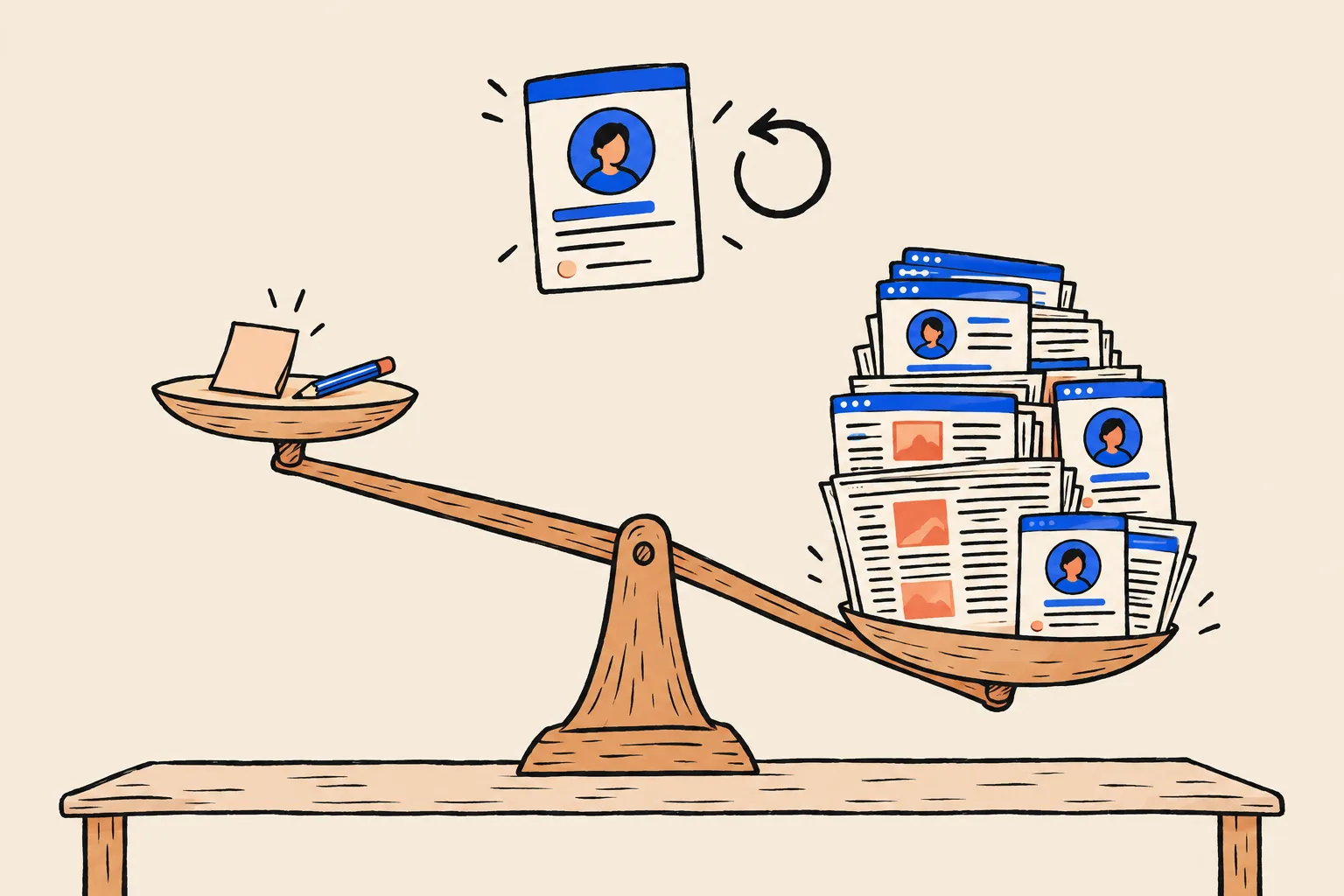
So when an edit reverts, the panel is usually telling you that the web still disagrees with you. Here’s how to work through it.
Find who still says the old fact
Search your name with the old detail in quotes: the old job title, the old firm, the wrong date. List every page that repeats it.
Fix the pages you control
Your website, LinkedIn, X, YouTube, speaker profiles, author pages and your firm’s team page. Your About page and its structured data should state the current fact clearly.
Ask others to update theirs
Event organisers, publishers, associations and directories. Send a short, polite note with the correct wording and a link to your About page.
Wait for Google to recrawl
Give the changes time to be seen. Requesting indexing of your About page in Search Console can help Google find it sooner.
Resubmit with the new evidence
Send a fresh request for the same item, listing the updated independent sources.
Keep a log and check monthly
Note what you asked for, when, and what happened. Most panel drift is caught early by a quick monthly search.
Where to start
If you have a panel, claim it this week, even if it looks fine. Use a Google Account you’ll keep, verify through the profile you control most completely (usually your website via Search Console), and add a trusted backup as manager.
Then make your first edits the easy ones: opt out of personal details you don’t want shown, and correct any outdated fact with independent evidence. Before each request, make sure your own website and profiles already say the right thing.
If you don’t have a panel yet, or the claim button won’t appear, start with what Google currently knows. Run your name through the free Knowledge Panel Checker, and if you’d like help untangling a mixed-up or stubborn panel, book a free audit.
Frequently asked questions
How do I claim my Google knowledge panel?
Sign in to a Google Account, search your name, click “Claim this knowledge panel” at the bottom of your panel (or under About, or in the menu on mobile), review the details and sign in to an official profile Google links to you: YouTube, Search Console, X or Facebook.
Why don’t I see the “Claim this knowledge panel” button?
Usually because there is no panel for you yet, the panel isn’t claimable yet, you’re looking at a Google Business Profile rather than a knowledge panel, or someone has already claimed it. Google says to check back periodically, and you can still send feedback without claiming.
What if someone else has already claimed my panel?
Check with your organisation or anyone who may have claimed it for you. If you can’t find the owner, start Account Recovery with Google’s Knowledge Panel Support team. Google gives the current owners 3 business days to approve you, after which the panel can become claimable again.
Can I add my assistant or agency to my panel?
Yes. Once verified, you can add people as managers, who can suggest changes and manage users, or contributors, who can only suggest changes. Keep ownership yourself and remove people when they stop working with you.
How long does Google take to review an edit?
Google says verified feedback is typically reviewed within a few days, followed by an email with the outcome, though it can take longer. Accepted changes are then updated in the Knowledge Graph.
Can I change my panel’s description or subtitle?
Not directly. Google doesn’t write custom descriptions or subtitles. You can ask the source of the description to correct it, then send Google strong evidence it’s wrong, and you can show a subtitle is inaccurate so Google picks another.
Why did my approved edit change back?
Panels are driven mainly by Google’s automated systems, which keep comparing what they hold with information across the web. Practitioners report that if other sources still say the old thing, an accepted change can be overridden. Fix those sources, then resubmit.
Sources
- 1Get verified on GoogleGoogle Knowledge Panel Help · Accessed 19 Oct 2026↩
- 2Get verified to manage your presence on Google (Lauren Clark)Google blog · 22 Jun 2018↩
- 3Submit feedback on content about you (Update your Google knowledge panel)Google Knowledge Panel Help · Accessed 19 Oct 2026↩
- 4Verify your site ownershipSearch Console Help · Accessed 19 Oct 2026↩
- 5Manage owners, users and permissionsSearch Console Help · Accessed 19 Oct 2026↩
- 6Find & control your Web & App ActivityGoogle Search Help · Accessed 19 Oct 2026↩
- 7The process of claiming a knowledge panel in Google (Jason Barnard)Kalicube · 24 Jun 2022, updated 13 Aug 2024↩
- 8How Google’s Knowledge Graph worksGoogle Knowledge Panel Help · Accessed 19 Oct 2026↩
- 9How long does it take for Google to verify a knowledge panelKalicube · 24 Oct 2024, updated 8 Jan 2025↩
- 10About knowledge panelsGoogle Knowledge Panel Help · Accessed 19 Oct 2026↩
- 11Your Instruction Manual for Google Knowledge Panels (Jason Barnard)Kalicube Academy · c. 2022-23↩
- 12Google Knowledge Graph algorithm updates and volatilityKalicube · 29 Dec 2023, updated 5 Sep 2024↩
Keep reading
 Knowledge PanelsWhat Is a Google Knowledge Panel, and Why Do Some People Get One?Shobin K Jose · 19 Oct 2026 · 23 min read
 Knowledge PanelsKnowledge Panel or Google Business Profile: Which Do You Need?Shobin K Jose · 2 Oct 2026 · 18 min read
 GuidesThe Name Search Checklist: 12 Things Prospects See Before They CallShobin K Jose · 6 Oct 2026 · 18 min read